Why manual capture
A long screenshot is a sequence, not one oversized frame
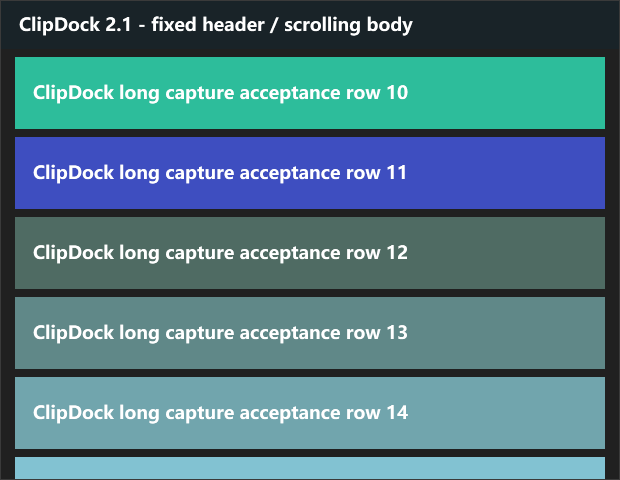
A normal region capture records only the pixels currently visible. A scrolling screenshot records several overlapping views while the content moves, then finds the shared area and combines them.
Manual control is slower than a fully automatic browser extension, but it gives you a clear boundary: choose the region, scroll when prompted, stop when the useful content ends, and review the stitched image before keeping it.
Four-step workflow
Capture only the part of the page that matters
Open the stable scrolling view
Pause animations, close menus and keep the window at a fixed size. Sticky headers can remain, but overlapping content should not change between steps.
Select the capture region
Choose the page or pane that contains the scrolling content. Avoid including unrelated windows or moving desktop areas.
Scroll in measured steps
Move down far enough to reveal new content while leaving visible overlap with the previous frame. ClipDock uses that overlap to align the sequence.
Finish and inspect
Stop at the useful endpoint. Check repeated headers, seams, missing rows and blank areas before saving or annotating the result.
Compatibility boundary
Some scrollable windows stitch more reliably than others
| Usually easier | More likely to show artifacts |
|---|---|
| Static articles, settings pages and ordinary file lists | Video, animated dashboards and rapidly changing feeds |
| One vertical scrolling pane with consistent width | Nested panes that scroll independently |
| Generous overlap between each step | Very large jumps with little shared content |
| Fixed zoom and window size | Content that reflows during capture |
Quality checklist
Reduce seams before you start
- Use one monitor and keep display scaling unchanged during the capture.
- Wait for images and fonts to finish loading.
- Leave roughly one-third of the previous view visible after each scroll.
- Move the pointer away from important text.
- Restart if a modal, tooltip or notification covers the selected region.
- Inspect the final image at actual pixels before relying on it as evidence.
Privacy
The stitched result stays local by default
ClipDock does not need a hosted capture service to assemble the frames. The result becomes another local library item unless you explicitly export, share or back it up to a destination you choose.
Review long screenshots carefully: they often contain more account, customer or project information than a single viewport. Crop or redact sensitive areas before sharing.
FAQ
Common scrolling screenshot questions
Is manual scrolling capture a Pro feature?
No. The core manual scrolling-capture workflow is included in ClipDock Free.
Will it work in every app?
No. Results depend on how the app renders and scrolls its content. Stable vertical pages work better than protected, animated or heavily virtualized surfaces.
Why is a header repeated?
A sticky element may move or redraw between frames. Try selecting only the scrolling body, using smaller scroll steps, or cropping the duplicate area afterward.
Can I annotate the finished long screenshot?
Yes. After saving the result, use the normal ClipDock annotation tools to crop, draw, add text, number steps or redact pixels.
Keep the full context, not seven disconnected captures
Capture the long page, review the stitched result, then keep it beside the other screenshots for that project.
Related guides